After three years of daily use, thousands of notes, and countless organizational experiments, I’ve learned that Obsidian’s power doesn’t come from fancy plugins or complex setups—it comes from a solid foundation that scales as your knowledge grows.
This is Part 1 of a series where I’ll share the exact system I use to manage everything from daily work notes to multi-year projects, technical documentation to personal life tracking. No fluff, no theoretical “productivity porn”—just the practical architecture that’s survived real-world use.
Why Foundation Matters
I’ve seen (and tried) elaborate Obsidian setups that look impressive in screenshots but collapse under daily use. The problem? They optimize for aesthetics over maintainability.
A good foundation should:
- Reduce cognitive load - You shouldn’t think about where things go
- Scale naturally - Adding your 1000th note should be as easy as adding your 10th
- Survive neglect - Missing a week shouldn’t break your system
- Support discovery - You should find what you need, even years later
Let me show you the architecture that delivers this.
The PARA Method: Not Perfect, But Proven
After experimenting with every organizational philosophy, I landed on PARA (Projects, Areas, Resources, Archives) created by Tiago Forte. It’s not perfect, but it solves the right problem: organizing by actionability, not topic.
The Four Folders
vault/
├── Projects/            # Active work with defined goals and end dates
├── Areas/               # Ongoing responsibilities without end dates
├── Resources/           # Reference materials and learning
└── Archives/            # Completed or inactive items
Projects are time-bound and goal-oriented:
- Building a feature
- Writing a blog post series
- Planning a conference talk
Areas are ongoing responsibilities:
- Engineering (work notes, architecture decisions)
- Management (1-on-1s, team planning)
- Personal (health tracking, financial notes)
Resources are reference materials:
- Conference notes (AWS re:Invent, Google Cloud Next)
- Technical documentation (MongoDB, Kubernetes, LiteLLM)
- Learning materials (courses, books, articles)
Archives are completed or retired items:
- Finished projects
- Old meeting notes (1+ year)
- Former responsibilities
Why This Works
The genius of PARA is action-oriented hierarchy. When you create a note, you ask: “What type of action does this support?” not “What category does this fit in?”
This eliminates the classic knowledge management trap: spending 10 minutes deciding if a note about Docker deployment belongs in “DevOps,” “Containers,” “Infrastructure,” or “Engineering.”
With PARA:
- Building a Docker-based deployment? Projects/ContainerMigration/
- Maintaining existing Docker infrastructure? Areas/Work/Engineering/
- Learning Docker concepts? Resources/Learning/Docker/
- Completed Docker migration? Archives/Projects/ContainerMigration/
Decision time: 2 seconds instead of 2 minutes.
My Complete Vault Structure
Here’s my actual structure with ~3,000 notes accumulated over three years:
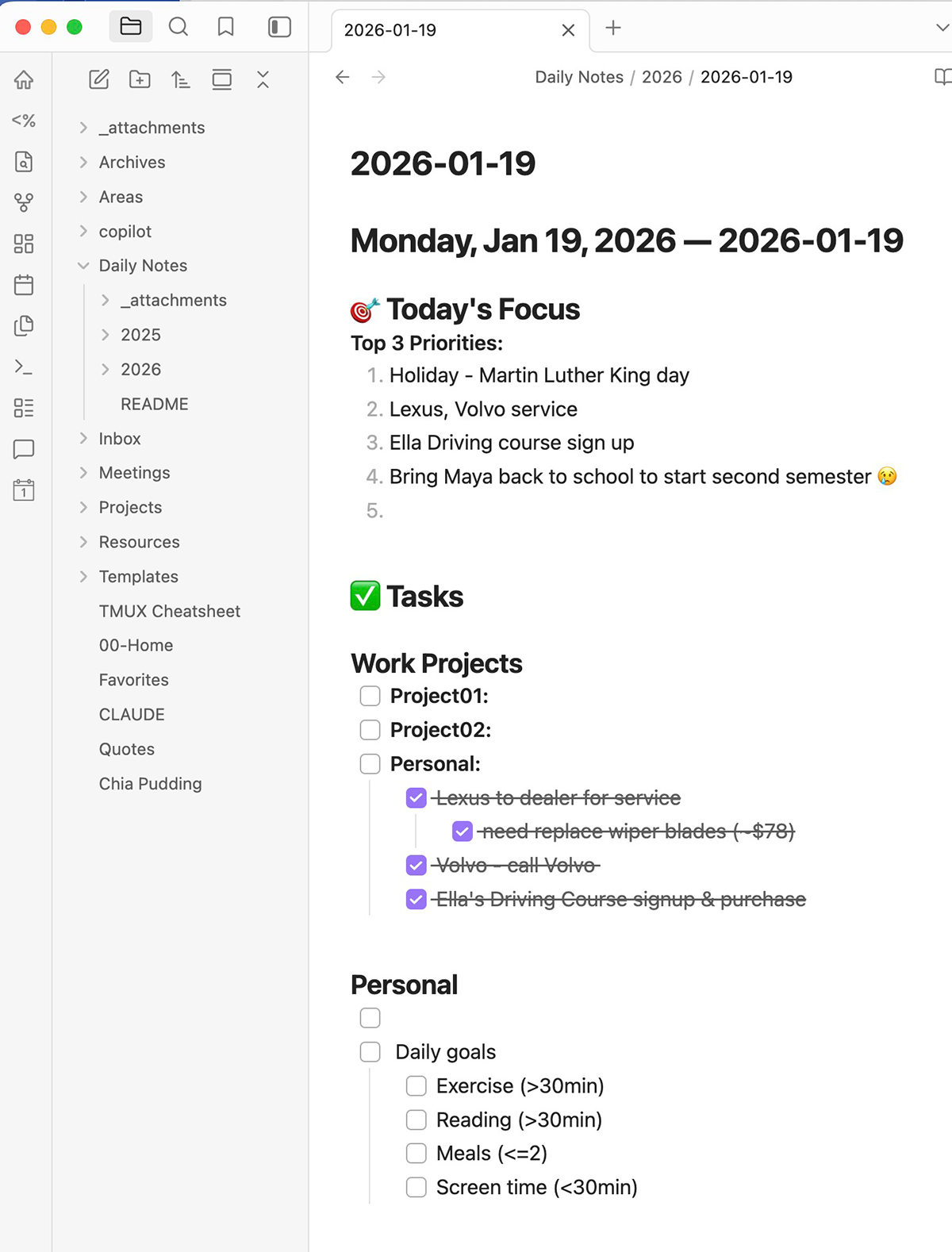
vault/
├── 00-Home.md           # Main dashboard and navigation hub
├── Projects/            # Active projects
│   ├── Work-Project-1/  # Work: AI initiative
│   ├── Work-Project-2/  # Work: Platform development
│   ├── Mostly-Copy-and-Paste/  # Personal: Blog
│   ├── Idea-Tracker/   # Personal: PWA app
│   └── README.md
├── Areas/
│   ├── Work/
│   │   ├── Engineering/        # SWE/SRE notes
│   │   ├── Management/         # Leadership, 1-on-1s
│   │   └── Architecture, Research & Development/
│   └── Personal/
│       ├── Financial/          # Money, car, investments
│       ├── Health & Wellness/  # Health tracking, ADHD notes
│       ├── Hobbies & Interests/  # Guitar, chess, music
│       └── Home & Living/      # House maintenance, living space
├── Resources/
│   ├── Learning/
│   │   ├── Conference Notes/   # re:Invent, Google Next, etc.
│   │   └── Training/           # Course notes
│   └── Technical/
│       ├── AI Stuff/           # AI/ML technical docs
│       ├── Claude-Code/        # Claude Code usage notes
│       ├── LiteLLM/            # Multi-LLM gateway notes
│       ├── MongoDB/            # Database docs
│       └── Observability/      # Monitoring, logging
├── Archives/
│   ├── Projects/              # Completed projects
│   └── Areas/                 # Former responsibilities
├── Daily Notes/
│   ├── 2025/                  # Organized by year
│   ├── 2026/
│   └── _attachments/
├── Meetings/
│   ├── 1-on-1/               # One-on-one meetings
│   ├── Team/                 # Team meetings
│   ├── Project/              # Project-specific meetings
│   │   ├── Work-Project-1/
│   │   └── Work-Project-2/
│   └── Training/             # Training sessions
├── Templates/                # Reusable note templates
│   ├── daily.md
│   ├── weekly.md
│   ├── meeting-notes.md
│   ├── project-kickoff.md
│   ├── 1-on-1-meeting.md
│   ├── technical-doc.md
│   └── Incidents/
│       └── Incident-Report.md
├── Inbox/                    # Quick capture area
│   └── Scratch Notes.md
├── Favorites.md              # Quick access dashboard
├── Quotes.md                 # Quote collection
└── _attachments/             # File attachments
Key Design Decisions
00-Home.md as launch pad: Your vault’s front door. Links to active projects, today’s daily note, recent meetings, and key areas. Open Obsidian → Open 00-Home.md → Navigate anywhere in 2 clicks.
Daily Notes by year: Daily Notes/2026/2026-01-19.md instead of flat structure. Prevents folder bloat and makes bulk operations (archiving old years) trivial.
Meetings separate from Projects: This was a hard-learned lesson. Meeting notes go in Meetings/Project/ProjectName/ NOT Projects/ProjectName/Meetings/. Why? Projects get archived, but you might reference old meetings for context.
Inbox for quick capture: Capture first, organize later. Review your Inbox weekly and move items to proper locations. This removes friction from note-taking.
Templates folder at root: Easy to find, easy to use. Includes subfolder for specialized templates (Incidents/).
Naming Conventions That Scale
Inconsistent naming is the silent killer of knowledge management systems. Three years later, you won’t remember if you named something “Work-Project-1 notes.md” or “Work-Project-1.md” or “notes-work-project-1.md.”
The Rules
Project index files: ProjectName.md never ProjectName notes.md
✅ Projects/Work-Project-1/Work-Project-1.md
❌ Projects/Work-Project-1/Work-Project-1 notes.md
❌ Projects/Work-Project-1/notes.md
Dated files: YYYY-MM-DD-Descriptor.md
✅ Meetings/Team/2026-01-19-Sprint-Planning.md
✅ Daily Notes/2026/2026-01-19.md
❌ 01-19-2026-meeting.md
❌ meeting-jan-19.md
Descriptive names without special characters: Use hyphens or spaces, avoid underscores and special chars
✅ Lambda Best Practices.md
✅ Lambda-Best-Practices.md
❌ lambda_best_practices.md
❌ lambda-best-practices!.md
No redundant “notes” suffix: Files are notes by default
✅ MongoDB Performance.md
❌ MongoDB Performance notes.md
Why ISO Dates (YYYY-MM-DD)?
- Sorts chronologically in file browsers
- Globally unambiguous (no US vs European date confusion)
- Search-friendly - easy to find all notes from a date range
- Future-proof - works in any tool, any OS
Template System: Your Productivity Multiplier
Templates are where Obsidian transforms from note-taking app to knowledge management powerhouse. They enforce consistency, reduce decision fatigue, and capture your best practices.
Core Templates
Here are the templates I use daily:
Daily Note Template
Every morning starts with a daily note. Mine captures:
# {{date:dddd, MMM D, YYYY}} — {{title}}

## 🎯 Today's Focus

**Top 3 Priorities:**

1.
2.
3.

## ✅ Tasks

### Work Projects

- [ ] **Project-1:**
- [ ] **Project-2:**
- [ ] **Other:**

### Personal

- [ ]
- [ ] Daily goals
  - [ ] Exercise (>30min)
  - [ ] Reading (>30min)
  - [ ] Meals (<=2)
  - [ ] Screen time (<30min)

### Admin/Meetings

- [ ]
- [ ]

## 📝 Notes & Observations

### Meetings

-

### Technical Insights

-

### Ideas/Thoughts

-

## 🌱 Learning & Growth

### Something I Learned Today

- **Technical:**
- **Personal:**

### Resources Discovered

- **Tool/Article:**
- **Link:**

## 🎉 Three Good Things

1.
2.
3.

## 📊 Daily Metrics (Optional)

- **Mood:** ⭐⭐⭐⭐⭐
- **Energy:** ⭐⭐⭐⭐⭐
- **Productivity:** ⭐⭐⭐⭐⭐
- **Focus time:**

---

## 🔗 Links

**Navigation:**

- [[00-Home|🏠 Home]] · [[Favorites|⭐ Favorites]]

**Daily Notes:**

- ← [[Daily Notes/{{date:YYYY}}/{{date:YYYY-MM-DD -1d}}|Yesterday]] · [[Daily Notes/{{date:YYYY}}/{{date:YYYY-MM-DD +1d}}|Tomorrow]] →
Why this structure works:
- Consistent capture - Same format every day makes review easier
- Multiple dimensions - Tasks, meetings, learning, mood all in one place
- Interconnected - Auto-links to yesterday/tomorrow for context
- Reflective - “Three Good Things” improves mental health (seriously)
Meeting Notes Template
---
tags: [meeting]
attendees:
project:
created: { { date:YYYY-MM-DD } }
---

# {{title}}

**Date:** {{date:YYYY-MM-DD}}
**Time:** {{time}}
**Duration:**
**Meeting Type:** 🎯 Planning | 🔄 Sync | 🐛 Bug Triage | 📊 Review | 💡 Brainstorm
**Recording:**

## Attendees

-
-

## Agenda

1.
2.
3.

## Notes

### Topic 1: [Name]

- **Discussion:**
- **Decision:**
- **Action Items:**
  - [ ] [@person]

### Topic 2: [Name]

- **Discussion:**
- **Decision:**
- **Action Items:**
  - [ ] [@person]

## Decisions Made

| Decision | Owner | Due Date |
| -------- | ----- | -------- |
|          |       |          |

## Action Items

- [ ] [@person] Task description (Due: YYYY-MM-DD)
- [ ] [@person] Task description (Due: YYYY-MM-DD)

## Parking Lot (Deferred Items)

-

## Next Steps

-

## Related Links

- [[Project Link]]
- [External Doc]()

---

**← Previous:** [[]]
**→ Next:** [[]]
Key features:
- Frontmatter for searchability - Find all meetings for a project
- Action items with owners - Clear accountability
- Parking lot - Capture good ideas without derailing the meeting
- Linked progression - Easy to see meeting history
Project Kickoff Template
For starting new projects, I use a comprehensive template that forces me to think through requirements, risks, and success metrics:
---
tags: [project, planning]
status: planning
created: { { date:YYYY-MM-DD } }
---

# {{title}}

**Status:** 🟡 Planning | 🟢 Active | 🔵 On Hold | ✅ Complete
**Owner:**
**Start Date:**
**Target Completion:**
**Last Updated:** {{date:YYYY-MM-DD}}

---

## 📋 Project Overview

### Problem Statement

> What problem are we solving?

### Goals & Success Criteria

- **Primary Goal:**
- **Success Metrics:**
  - Metric 1:
  - Metric 2:

### Non-Goals (Out of Scope)

-
- ***

## 👥 Team & Stakeholders

### Core Team

| Role         | Name | Responsibility |
| ------------ | ---- | -------------- |
| Project Lead |      |                |
| Engineering  |      |                |

### Stakeholders

- **Executive Sponsor:**
- **Key Stakeholders:**

---

## 🎯 Requirements

### Must Have (P0)

- [ ]
- [ ]

### Should Have (P1)

- [ ]

### Nice to Have (P2)

- [ ]

---

## 🗓️ Timeline & Milestones

| Milestone       | Target Date | Status | Notes |
| --------------- | ----------- | ------ | ----- |
| Kickoff         |             | ✅     |       |
| Design Complete |             | 🟡     |       |
| Dev Complete    |             | ⬜     |       |
| Launch          |             | ⬜     |       |

---

## 🏗️ Technical Approach

### Architecture Overview

> High-level technical design

### Technology Stack

- **Backend:**
- **Frontend:**
- **Infrastructure:**

---

## 🚧 Risks & Mitigations

| Risk | Impact       | Probability  | Mitigation |
| ---- | ------------ | ------------ | ---------- |
|      | High/Med/Low | High/Med/Low |            |

---

## 📝 Meeting Notes & Decisions

### Key Decisions

- **Decision:**
  - **Made by:**
  - **Date:**
  - **Rationale:**

---

## 📚 Resources & Documentation

### Links

- **Design Doc:** [[]]
- **Tech Spec:** [[]]
- **Jira/GitHub:**

### Related Notes

- [[]]

---

## 📊 Status Updates

### Week of {{date:YYYY-MM-DD}}

- **Progress:**
- **Blockers:**
- **Next Steps:**
This template has saved me countless times by forcing upfront thinking about scope, risks, and success criteria.
Frontmatter: Your Future Search Engine
Frontmatter (YAML metadata at the top of notes) is optional in Obsidian, but it becomes essential as your vault grows. It enables powerful queries and filtering.
Standard Fields
I use these consistently across all notes:
---
created: 2026-01-19
modified: 2026-01-19
tags: [project, engineering, ai]
status: active
---
created: Never changes, tracks when note was first written modified: Auto-updated, helps find recently changed notes tags: Flexible categorization (more on this in Part 2) status: Context-dependent (active/planning/complete for projects, open/closed for issues)
Template-Specific Fields
Meeting notes add:
attendees: [alice, bob]
project: Work-Project-1
meeting-type: planning
Project notes add:
owner: kevin
start-date: 2026-01-15
target-date: 2026-03-01
Pro tip: Start simple. Add fields as you discover you need them. Trying to design the perfect frontmatter schema upfront leads to analysis paralysis.
Putting It All Together: The First Week Workflow
Here’s how to actually use this system in your first week:
Day 1: Setup
- Create PARA folders (Projects, Areas, Resources, Archives)
- Add Inbox, Templates, Daily Notes, Meetings folders
- Create 00-Home.md as your dashboard
- Copy daily note template to Templates/daily.md
Day 2-7: Capture Everything
- Create daily notes each morning using the template
- Dump everything into Inbox (don’t worry about organization)
- Use meeting template for any meetings
- Link related notes together with
[[wikilinks]]
Week 2: First Organization Pass
- Review Inbox weekly
- Move items to proper PARA locations
- Create project index files for active work
- Archive completed items
Month 2+: Refinement
- Adjust folder structure as patterns emerge
- Add templates for recurring note types
- Develop your frontmatter conventions
- Prune and reorganize as needed
The key: Don’t try to build the perfect system upfront. Let it evolve with your needs.
Common Pitfalls and How to Avoid Them
Pitfall 1: Over-organizing Before Capturing
The trap: Spending more time designing folder structures than actually taking notes.
The fix: Use Inbox liberally. Organize weekly, not daily.
Pitfall 2: Too Many Folders
The trap: Creating a folder for every topic or project.
The fix: Limit top-level PARA folders. Use tags and links for sub-categorization.
Pitfall 3: Rigid Templates
The trap: Making templates so detailed they become burdensome.
The fix: Templates should guide, not constrain. Skip sections that don’t apply.
Pitfall 4: Perfectionism
The trap: Not taking a note because you haven’t found the “perfect” location.
The fix: Better to capture imperfectly than to not capture at all. You can always move it later.
Pitfall 5: Neglecting Maintenance
The trap: Never archiving, never pruning, vault becomes overwhelming.
The fix: Monthly review. Archive completed projects. Delete truly useless notes. It’s okay to let go.
What’s Next
You now have the foundation: PARA structure, naming conventions, templates, and frontmatter standards. This architecture scales from 10 notes to 10,000 notes without breaking.
In Part 2, we’ll supercharge this foundation with Claude Code integration and MCP (Model Context Protocol). You’ll learn how to:
- Query your entire vault with natural language
- Generate weekly summaries automatically
- Use AI to synthesize insights across hundreds of notes
- Build custom slash commands for common workflows
In Part 3, we’ll tackle daily life tracking: car maintenance logs, house projects, reading logs, and financial tracking—all in Obsidian with AI assistance.
In Part 4, we’ll cover professional workflows: technical documentation, project planning, meeting notes that get referenced, and syncing with tools like Confluence and GitHub.
Resources
Official Obsidian:
PARA Method:
- Tiago Forte’s Blog
- Building a Second Brain (book)
Template Inspiration:
What’s your current Obsidian setup? What organizational challenges are you facing? Drop your thoughts in the comments—I’d love to hear what’s working (and what’s not) for you.

Comments